

What is an email alias?
Email alias (from English “alias” — nickname) is a way to create additional email addresses for your existing mailbox.
All messages sent to alias addresses are delivered to your main mailbox.
Why use an alias?
An alias is useful when you do not want to share your real email address.
For example:
Main address: janis.berzins@inbox.lt
Alias: j.reklama@inbox.lt
If you do not want your real email address to be publicly visible on the internet (for example, when registering on websites or posting ads), you can use an alias instead.
All messages sent to j.reklama@inbox.lt will be delivered to your mailbox janis.berzins@inbox.lt, and the sender will not know your real email address.
Important
- Alias validity is unlimited or until the main mailbox is deleted
- You can delete an alias at any time
- After deletion, messages will no longer be received
- Filters can be applied to aliases
- Alias cannot be used to log in
- Use your username and password to log in
- You can send and reply to emails from an alias
- Maximum: 1 aliass per mailbox
When are aliases useful?
- For long or hard-to-remember email addresses (e.g., jb@inbox.lt)
- For spam protection — delete an alias and create a new one
- For domain email users — create addresses like info@, support@, webmaster@, etc.
All messages will be delivered to your main mailbox.
How to create an alias
- Go to your mailbox settings
- Open “Forwarding and aliases”
- Select “Email aliases” → click “Add”
- Enter the alias name (without domain)
- Click “Save”
The alias will start working immediately after creation.
How to delete an alias
- Go to your mailbox settings
- Open “Forwarding and aliases”
- Select “Email aliases”
- Click “Delete” next to the alias
If you change your mind, click “Restore” and the alias will continue working as before.
Clearing the Cache and Cookies in a browser helps to fix issues, which cause errors on a webpage if portal has got any changes of design or functionality. If cache is not cleared, browser will use old data instead of new, what can cause errors. Clearing the Cache and Cookies can fix these errors.
Sometimes it is necessary to clear the Cache more than once.
Google Chrome 69.0
1. Select the Tools icon ,
2. Select More toolsand Clear browsing data,

3. Select Advanced, time range All time and select checkboxes:
-
Cookies and other site data;
-
Cached images and files,

4. Click Clear data,
5. Close and restart your browser.
Mozilla Firefox 62.0
1. Select Open Menu / Options page:
2. Select Privacy and Security, History

3. Click Clear History, chose:
- choose Cache
- choose Cookies

4. Click Clear,
5. Close and restart your browser.
Internet Explorer 11
1. Select Tools  and choose Internet Options,

2. Under "Browsing history," click Delete,

3. Select the following checkboxes:
-
Temporary Internet files and web site files;
-
Cookies and web site data,

4. Click Delete,
5. Click OK,
6. Close and restart your browser.
Microsoft Edge 41.1
1. Select Settings and more and choose Settings,

2. Select Choose what to clear,

3. Select the following checkboxes:
-
Cookies and saved website data;
-
Cached data and files,

4. Click Clear,
5. Close and restart your browser.
Opera 55.0
1. Select and choose Clear browsing dataunder History,

2. In "Obliterate the following items from" select the beginning of time;
3. Select the following checkboxes:
-
Cookies and other site data;
-
Cached images and files,

4. Click Clear browsing data,
5. Close and restart your browser.
If You are using another browser or different version, here You can find usefull information about clearing the Cache.
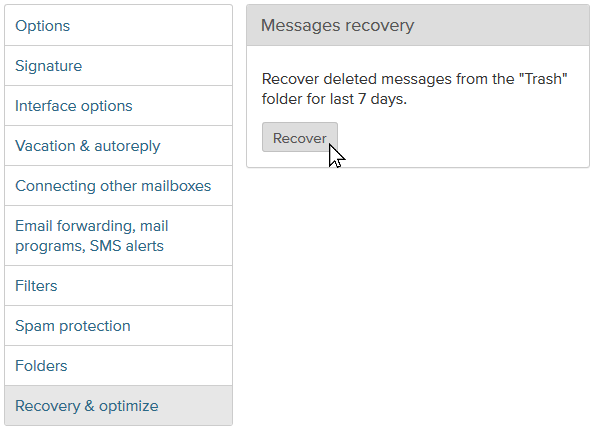
This option allows recovering deleted messages from the Trash folder for last 7 days. Attention! After pressing Recover button please wait about 15 minutes before all deleted messages will be recovered and placed back into Trash folder.
To recover deleted messages from folder Trash:
- Login into your account;
- Open section Options;
- From the menu on the left choose Recovery & optimize;
- To complete action, press Recover.
Choose which browser you want to download:
Mozilla Firefox (recommended)
Google Chrome
Ms Edge
Safari (for iOS/MacOs)
Mypal (for Windows XP & Vista) - install can here (ZIP version - 78.0.v)
We don't support more:
- Internet Explorer
- Firefox 67 or below
- Google Chrome 60 or below
- Safari 11
- Edge 18
Problems with updating the browser by yourself?
If you are using a computer and you do not have rights to install or update the software, ask the administrator to do it.
It is not possible to update an existing web browser?
If you cannot change the browser due to lack of compatibility (for example, usage of old browser-specific software), you can install a second browser from offered and use it for web page viewing.
If you have deleted messages from the folder, go to "Trash" and use the search form who is located on the top corner to find the necessary deleted posts. If the letter was found, restore it to folder "Incoming”.
If you delete messages from the folder "Trash” (or repeatedly press to clean the trash) deleted messages of the last seven days can be restored back.
If you clear the entire contents of a folder for example the Spam folder or any other in this case, letters are deleted immediately without trading in Trash. These letters can’t be restored.
If your sent message in receiver's mailbox has incorrect information in a field "From", it means that you have entered this information in your signature, which is used for outgoing messages.
You need to change this signature:
1. Come into the letterbox Settings, and choose the section Signature,
2. Enter and confirm information that appears in the "Full name” section.
1. Check if these letters aren’t already in your mailbox. Check all the folders, especially folders – Subscribed, List, Spamand Trash. When you check the folders, use the search in the upper right side.
2. Open Settings, section Filtersand make sure that specific reciever or domain are not in the list of email addresses, witch for example, are automatically deleted.
3. Perhaps for a long time you have not used your mailbox and it became inactive. Log into your mailbox through the web page and ask to message sender, if he can send you message repeatedly.
From the person who was sends you a message, find out if after sending the letter, it came back with text - letter is not delivered. If such a warning has come, there is definitely written a reason, why letter is not delivered. Please forward this notification letter to us.
4.Pay attention to size of the mailbox - perhaps it's full. Clean the mailbox and ask to resend the letter.
! ! If these methods not topical to you, write to usyour question and this kind of information – from which addresses must come the letters, what is the topic of the letter, date and time of dispatch.